Summary
Learn how to upscale video to 4K with AI, when 4K is worth it, which source videos improve the most, and how to avoid the most common quality mistakes.
TL;DW
- Verdict: upscale to 4K (3840 x 2160) only when the source is reasonably clean and the video is headed for a large screen, a YouTube re-upload or further editing.
- Target by source: 480p or below to 1080p; 720p to 1080p or 2K; 1080p to 2K or 4K; clean anime handles 4K well.
- Skip 4K when: the source is heavily compressed, noisy, blocky or badly exposed, or will only be watched on phones.
- Artifact check: test a short section with faces, motion and thin lines; if you see halos, shimmer or waxy skin, step down to 1080p or 2K.
- Cost in 2026: on VideoUpscaler 4K costs 3 credits per second versus 1 at 1080P; new accounts get 10 free credits with a small watermark.
- Model: FlashVSR runs in the cloud for both anime and real footage, so there is no Anime4K or Real-ESRGAN choice to make.
If you want to upscale video to 4K without making it look fake, the best approach is simple: start with the cleanest source you have, choose the right target resolution, and use AI upscaling only when the extra detail will actually help.
The short version is this: AI can make low-resolution video look sharper, cleaner, and more watchable on modern screens, but it cannot recreate detail that was never captured. Good upscaling improves what is already there. Bad upscaling exaggerates noise, halos, and artifacts.
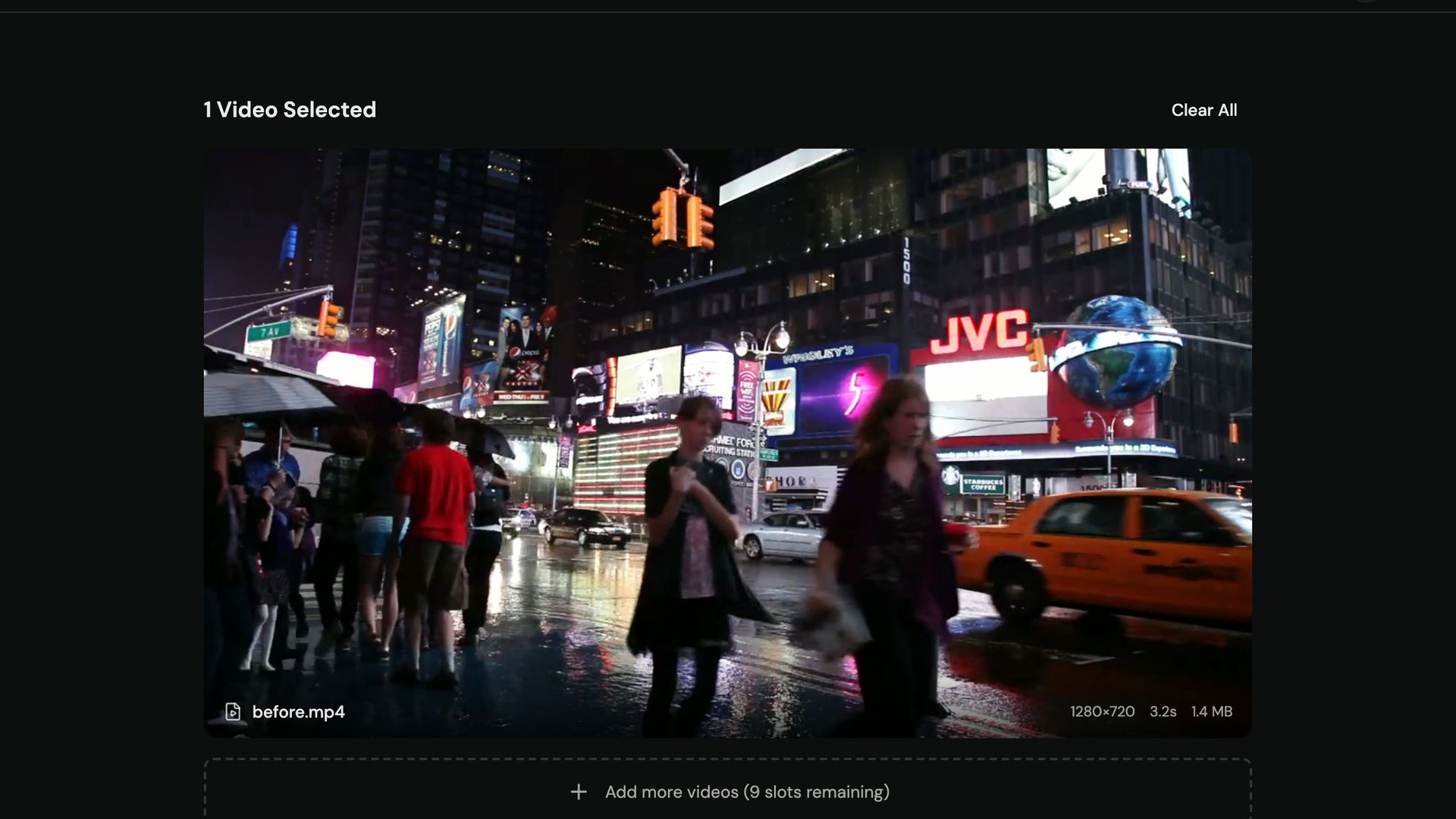
Upscale video to 4K from a short clip while you read
The 4K upscaler defaults to 3840 x 2160 output. 4K costs 3 credits per second; new accounts start with 10 credits.
What 4K upscaling actually does
4K upscaling increases the output resolution of your video to 3840 x 2160. Traditional scaling just stretches pixels. AI upscaling tries to rebuild edges, textures, and fine detail so the result looks more natural.
That matters when you are working with:
- old YouTube uploads
- 720p gameplay footage
- archived client videos
- wedding and family videos
- anime or illustrated footage
If the source is decent, AI upscaling can make it look much better on a large monitor, modern TV, or re-uploaded YouTube video.
When 4K is worth it
4K upscaling is usually worth it when at least one of these is true:
- you plan to watch the video on a large display
- you want to re-release older content on YouTube
- you need a cleaner master file for editing
- the source already has recognizable detail but looks soft at full screen
It is usually not worth forcing 4K when:
- the source is heavily compressed
- the video is very noisy or blocky
- the footage is tiny, blurry, and badly exposed
- the original only needs to look decent on mobile
In those cases, 1080p can look more natural than an over-processed 4K export.
Best target resolution by source quality
| Source quality | Best first target | When to go higher |
|---|---|---|
| 480p or below | 1080p | Only move to 4K if the source is unusually clean |
| 720p | 1080p or 2K | 4K makes sense for strong footage or re-uploads |
| 1080p | 2K or 4K | 4K is usually the logical upgrade |
| Anime / clean line art | 1080p, 2K, or 4K | Great candidate for aggressive upscaling |
| Archival real footage | 1080p first | Move to 4K only after checking artifacts |
The mistake most people make is jumping straight to 4K for every file. The better workflow is to choose the smallest output that clearly looks better than the original.
Step-by-step: how to upscale a video to 4K
1. Start with the best source file
Use the least-compressed version you can find. If you have the original export, use that instead of a social-media download.
Why it matters: AI models work with the information you feed them. Compression damage, ringing, and macroblocking get amplified if the source is already broken.
2. Decide whether the footage is anime or real-world video
This changes what to look for when you review the result.
- Anime and illustrated footage: check that line art stays clean and flat colors stay flat
- Real-world footage: check skin, hair, fabric, and foliage for natural texture
Some desktop tools make you pick a model for each type (for example, Anime4K for animation and Real-ESRGAN for live action), and the wrong choice can look crunchy or unnatural. VideoUpscaler runs one diffusion-based video model, FlashVSR, for both, so there is no model to pick.
3. Pick a realistic target resolution
If the source is 720p, try 1080p first, then compare it with 4K if needed.
If the source is already 1080p, 4K is often reasonable.
The goal is not just a bigger file. The goal is a visibly better image.
Upscale video to 4K for a short section first
Trim 10 to 20 seconds with faces, motion and thin lines, upload it, and compare 1080P, 2K and 4K on the same clip.
4. Review a short section before processing the full file
Pick a section with:
- faces
- fast motion
- fine textures
- shadows
- subtitles or thin lines
If the result holds up there, it will usually hold up on the rest of the clip.
5. Check for common artifacts
Before keeping the 4K export, watch for:
- oversharpened edges
- shimmering textures
- waxy skin
- glowing outlines
- amplified noise
If you see those problems, step down to 1080p or 2K. Higher resolution is not always higher quality.
Which videos improve the most with AI upscaling
The best results usually come from footage that is soft, but not destroyed.
Strong candidates:
- old DSLR or camcorder footage
- screen recordings and gameplay
- classic anime episodes
- music videos and live events
- wedding footage with decent exposure
Harder candidates:
- extremely dark footage
- clips with severe motion blur
- low-bitrate messenger exports
- heavily compressed reposted content
Common mistakes that make 4K results worse
Upscaling a bad file too aggressively
If the input is weak, jumping straight to 4K can create a bigger version of the same problems.
Treating all footage the same
Anime, archival film, and smartphone footage do not behave the same way. The right target resolution for each is different.
Judging quality from a paused frame only
Always check motion. A frame can look sharp while the moving video still shimmers or breaks apart.
Ignoring file size and workflow
If your goal is social posting or lightweight editing, 1080p may be the smarter final output.
A practical workflow that works for most creators
If you are not sure where to start, use this order:
- Test a short sample
- Note whether it is anime or real-world footage
- Export to 1080p or 2K first
- Compare with a 4K version only if the source justifies it
- Keep the version that looks best in motion
That approach usually gives better results than forcing every file to 4K from the start.
Upscale video to 4K without a GPU
Cloud GPUs do the work, so a laptop is enough. Results carry a small watermark until your first purchase.
FAQ
Can AI really upscale 720p video to 4K?
Yes, but the quality depends on the source. Clean 720p footage can improve a lot. Poorly compressed 720p footage may look better at 1080p than at 4K.
Will 4K upscaling add real detail?
It can improve perceived detail, edge definition, and texture reconstruction, but it cannot recover information that does not exist in the source.
Is 4K always better than 1080p?
No. If 4K introduces artifacts or makes the video look artificial, 1080p is the better result.
What is the best AI upscaler for anime?
Among open-source tools, Anime4K is often the stronger choice for anime because it preserves clean lines and flat color regions better than general-purpose image models. If you would rather not install anything, VideoUpscaler's FlashVSR model handles anime in the browser as well.
Can I try this before paying?
Yes. New VideoUpscaler accounts get 10 free credits to test AI upscaling (4K costs 3 credits per second, 1080P costs 1, and free results carry a small watermark). Plans and credit packs are on the pricing page.