
VideoUpscaler tools
AI Video Enhancement Tools
These AI video enhancement tools all run the same cloud GPU model. Pick one by the problem you see: soft, noisy footage needs repair, and a small frame needs more pixels. Each one returns 1080P, 2K or 4K.
Every way to use VideoUpscaler
In the browser, on your Mac, from your own code or through an AI assistant. The web app, API and MCP server share one account and one credit balance; the Mac app has its own license.
 480p4K
In your browser
Web app
Upload a video or a link, pick a resolution up to 4K, and our cloud GPUs return the result. Every tool on this page runs here.
For anyone who wants our best quality without installing anything.
Upscale a video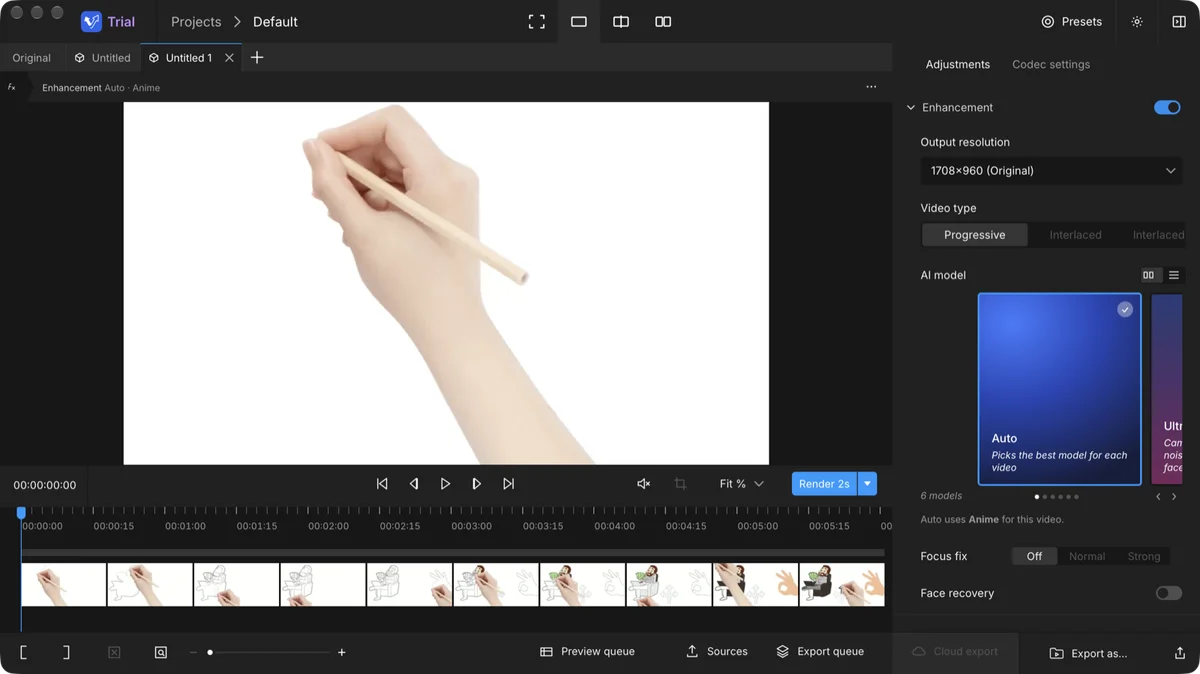
Apple Silicon · macOS 12+
VideoUpscaler Desktop for Mac
Six AI models run on your own Mac: 2× or 4×, presets up to 8K, face recovery, frame interpolation and stabilization. Your videos are never uploaded.
For Mac users with private footage or long videos.
Download for MacREST API
POST /api/v1/upscaleVideoUpscaler API
Send a video URL, poll the task and download the upscaled file. Same model and same credits as the web app. For developers building upscaling into an app or pipeline, on accounts that have bought credits.
Read the API docsModel Context Protocol
videoupscaler.co/api/mcpMCP server
Add the server to Claude, Claude Code, Cursor or VS Code, sign in, and ask your assistant to upscale a video. It uses the same model and credits as the API. For people who already work in an AI assistant.
Connect your assistant
Fix video quality
Blurry, soft or blocky footage: these tools rebuild detail and clean up compression while keeping the frame size you choose.

Enhance Video Quality
Sharpen blurry, low-resolution and compressed footage, from old phone clips to soft webcam recordings.

Unblur Video
Fix blurry, soft and compressed clips and get faces and text back sharp.

Fix Pixelated Video
Clean up blocky, pixelated video from low-bitrate uploads and old recordings.
Upscale resolution
Footage that looks clean but is too small: these tools add real pixels, up to 3840×2160.



Runs on cloud GPUs
The upscaling happens on our GPUs, not on your computer, so a laptop or a phone browser is enough.
Billed per second
1080P costs 1 credit per second of video, 2K costs 2 and 4K costs 3, so a one-minute 4K video uses 180 credits. A task that fails is refunded.
Bring any common file
Upload MP4, MOV or WebM up to 500 MB, or paste a link to the video instead. Finished videos stay in your processing history.
FAQ
Questions about these tools
If the picture looks soft, noisy or blocky, start with the quality tool; if it looks clean and is only too small, go straight to an upscaler. Each of these AI video enhancement tools sends your video to the same model on the same cloud GPUs, so a 4K result looks the same whichever page you start from. Try a short clip first.
Use the web app for the best quality: it runs our largest model on data-center GPUs and returns 1080P, 2K or 4K. Use VideoUpscaler Desktop when footage must stay private or you process a lot of long videos: six AI models run on your own Mac, your videos are never uploaded, and output goes up to 8K. The Mac app needs Apple Silicon (M1 or later) and macOS 12 or later; Intel Macs and Windows are not supported yet.
No. The Mac app has its own license, annual or a one-time Perpetual License, and it starts with a 7-day trial. Credits pay for cloud upscaling on the website, API and MCP server; buying one does not add the other. You sign in to both with the same VideoUpscaler account, and the license is active on one Mac at a time.
MP4, MOV or WebM up to 500 MB, or a link to the video. A video can be up to 20 minutes long at 1080P and up to 10 minutes at 2K or 4K. Other formats such as MKV or AVI are not accepted, so convert them to MP4 first.
1080P, 2K (1440p) or 4K (2160p). Processing time depends on the length of the video and the resolution you pick: longer videos and 4K take longer, and long videos are split across several GPUs. If a job takes a while, we email you when the video is ready, so you can close the page; finished videos stay in your history.
The web app, API and MCP server share one account and one credit balance. You pay per second of video, rounded up: 1 credit for 1080P, 2 for 2K and 3 for 4K, and the total is shown before processing starts. If a job fails, its credits are refunded. New accounts get 10 credits to try it, and results carry a small watermark until your first purchase.
The API is for developers who want upscaling in their own app or pipeline: create a key in Settings › API Keys, send a video URL to /api/v1/upscale, then poll the task and download the result. The MCP server is for people who work in Claude, Claude Code, Cursor or VS Code: add https://videoupscaler.co/api/mcp, sign in, and ask your assistant to upscale a video. Both work on accounts that have bought credits or subscribed.
Yes. The Batch Video Upscaler takes up to 10 videos at one resolution in a single run, for paid accounts. Each video is billed by its own length, and the results land in your history. With the API you can also submit tasks from your own code.
Yes. These AI video enhancement tools run in the cloud, so a modern mobile browser can upload a video and download the result. Large files upload faster over Wi-Fi.
Uploaded videos, results and thumbnails are kept for 30 days after processing so you can download them from your history, then deleted automatically. They are deleted sooner if you delete the task or your account. With the Mac app nothing is uploaded: decoding, upscaling and encoding all run on your Mac.
Not sure yet? Start with one clip.
Upload a short video to any of the AI video enhancement tools above, pick a resolution, and compare the result with your original before you process the rest.