
Makeup Transformation Video Upscaler
A makeup transformation video lives on detail: brush strokes, eyeliner, glitter and the clean edge of a face-paint design. Upload your Halloween reveal here and the AI model rebuilds those lines frame by frame, then hands the makeup transformation back at 1080P before TikTok or Reels compress it. Vertical stays vertical.
New accounts get 10 free credits. Try it now.
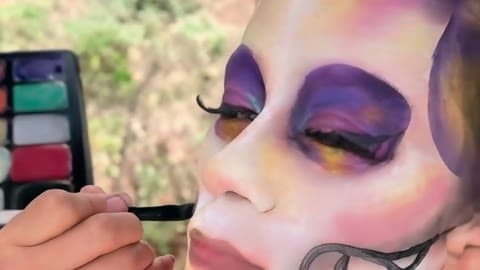
Drop in your makeup transformation and see the difference.
MP4, MOV, MKV or WebM up to 500 MB

Our AI upscaling tools are used by people at





Halloween makeup transformation clips, before and after
Sugar-skull makeup
Brush strokes and the edge of the painted design are what viewers watch in a makeup transformation. This clip was run through VideoUpscaler in 1080P and every line is crisp. Source: Pexels stock clip.
Carved pumpkin close-up
Knife cuts and the stem's texture are what make a carving clip satisfying, and they're the first thing a re-shared copy loses. This one was run through VideoUpscaler in 1080P. Source: DaveHax on YouTube.
Painted faces
Fine painted lines and flower petals survive TikTok's compression better when the upload starts sharp.
Carving in progress
The knife edge and the pumpkin skin are the satisfying part. A blurry upload flattens both.
Costume reveals
Embroidery, flowers and lace in a costume shot keep their pattern instead of turning to mush.
Decor and room tours
Candle flames and the carved face read clearly on a phone screen.
Makeup transformation video upscaler: formats, limits and price
Upload the MP4 or MOV from your phone or editor, up to 500 MB, and get it back at 1080P for 1 credit per second.
| Input formats | MP4, MOV, MKV, WebM, M4V |
|---|---|
| Max file size | 500 MB per video |
| Max length | 20 minutes at 1080P, 10 minutes at 2K or 4K |
| Output resolution | 1080P, 2K or 4K |
| Price | 1 credit per second at 1080P, 2 at 2K, 3 at 4K |
| New accounts | 10 credits to start; results carry a small watermark until you buy credits |
| Best setting for TikTok | 1080P, the size TikTok and Reels display |
| Vertical 9:16 | Supported; the aspect ratio is kept |
| Kept from the original | Colors, audio, frame rate and aspect ratio |
| Installation | None: it runs in your browser on cloud GPUs |
| Demos on this page | First card and the slider: real VideoUpscaler output. Other cards: a 4K stock original next to our 480p copy |
How to post a sharper makeup transformation video
Upscale the finished edit, not the raw clips, and upload the result straight from your phone's files.
1. Export your edit at the highest quality.
In CapCut or your editor, export at the highest bitrate it offers. Don't screen-record the preview.
Get started2. Upload it here and pick 1080P.
Anything higher costs more and the apps scale it down anyway.
3. Post the downloaded file.
Upload the sharper file from your camera roll and turn on “Upload HD” in TikTok's settings if you see it.
What it won't do for your Halloween reveal
Try it with your clipNo AI makeup or filters.
It doesn't add makeup or effects; it sharpens the transformation you filmed.
No reposting other creators.
Upscale your own videos. Re-uploading someone else's clip can break TikTok's rules and their copyright.
Dark rooms stay dark.
It doesn't brighten a dim party shot. Add light while filming, or brighten in your editor first.
Fast spins stay blurred.
Strong motion blur from a quick transition only partly clears.
Why makeup transformation videos look blurry after upload
TikTok and Instagram re-encode every upload, so a makeup transformation that was already soft loses its finest detail first: lashes, glitter and face-paint lines. Starting from a sharper 1080P file leaves more of that detail after compression.
Sharpen your TikTokMakeup lines survive.
Edges of face paint and eyeliner stay crisp.
Costume texture survives.
Sequins, lace and fur keep their pattern.
Text overlays stay readable.
Captions you burned in keep clean edges.
Same length and sound.
Timing and audio match your edit, so trends stay in sync.
Good to know:
Per-second pricing
1080P costs 1 credit per second, 2K costs 2, 4K costs 3.
Vertical or landscape
Aspect ratio stays as it is, so 9:16 clips stay 9:16.
Automatic refunds
If a job fails, the credits go back to your balance.
480p vs VideoUpscaler 1080P on a makeup transformation
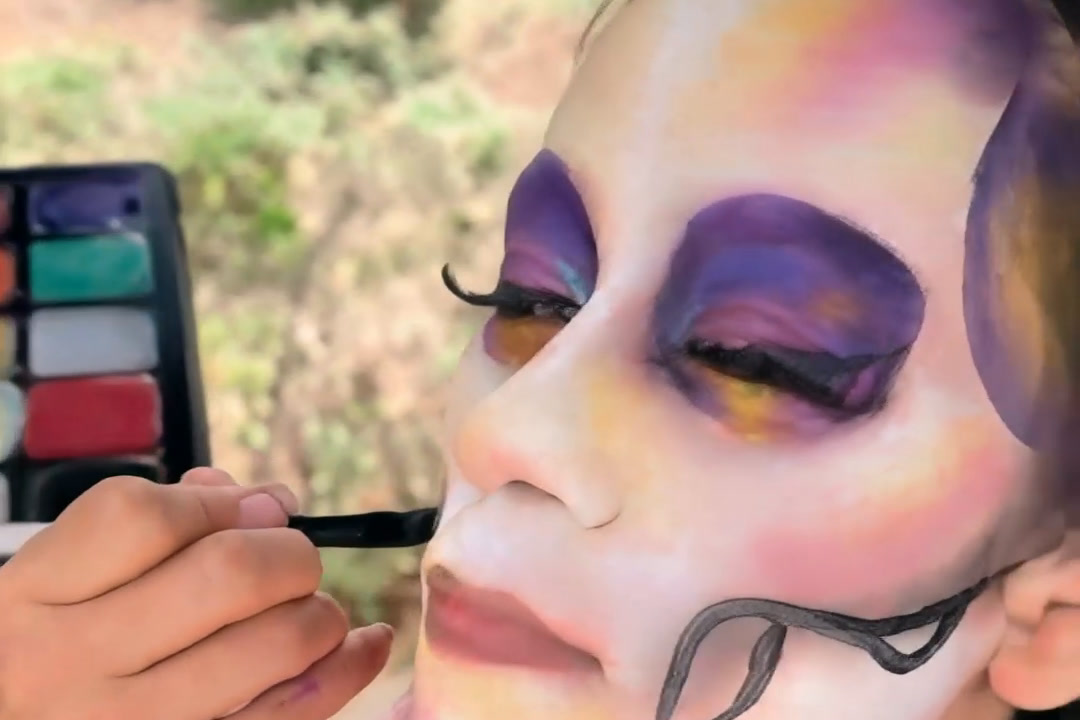
At 480p the brush, the purple petals and the eye makeup smear together; in the VideoUpscaler 1080P result each stroke has an edge. Left: our 480p copy of a 5-second excerpt. Right: the same frame from the real VideoUpscaler output. Footage: Pexels stock clip 29180772. Drag the divider to compare.
See your own makeup transformation in sharp detail.
Get startedFrequently Asked Questions
Makeup transformation video FAQ: blurry uploads, Reels and price
Usually the source was already soft: a low-light phone clip, a screen recording or a copy saved from another app, and then the app compresses it again. Upscale the original edit of your makeup transformation to 1080P before you post.
Usually not worth it. TikTok displays vertical video in Full HD on phones and re-compresses bigger files, so a 1080P upscale costs a third as much and looks the same in the app.
Yes. Reels and Shorts also play 1080P vertical video, so the same 1080P file works on all three.
Yes. Open this page in Safari or Chrome, tap Upload and pick the clip from Photos or Files. There is no app to install.
1080P costs 1 credit per second, so a 15-second clip uses 15 credits. Failed jobs are refunded automatically.
Yes. Length, frame rate and audio stay as they were, so the clip still lines up with the trending sound.
MP4, MOV, MKV, WebM and M4V files up to 500 MB, including vertical videos straight from an iPhone or Android phone.
Still have questions? Email us at support@videoupscaler.co